
Hero card
Warehouse problems rarely come from the routine move everyone understands. They come from the exceptions: a receipt in the wrong location, a resupply route that wasn’t set, or a partial transfer closed the wrong way. Here’s how to make those moves easier to spot before they become a month-end surprise.
One step, two steps, or three?
Odoo’s standard inbound and outbound flows are configured on the warehouse. In the usual one-step receipt, goods move from the vendor location straight to warehouse stock. A one-step delivery moves goods from stock to the customer. That is often the right fit when a small team receives, checks, and puts away goods in one continuous action.
A two-step receipt separates the dock from available stock:
- Receive goods from the vendor into the warehouse’s input location.
- Transfer the goods from input into stock.
Use this when the physical handoff matters. A receiving team may check quantities first, then let another person put items away. It can also help when goods need to be sorted for particular areas. Until the second move is completed, the goods are in input, not in the stock location that downstream work may expect.
Two-step delivery uses a similar handoff in reverse: pick goods from stock into output, then ship them to the customer. That can make sense when picking is a separate warehouse task from dispatch.
A three-step receipt adds a quality-control location between input and stock. A three-step delivery adds a packing zone between picking and output. Choose these when those are real operational checkpoints, not just because three sounds more controlled. Every additional leg is another transfer to assign, complete, and monitor.
Your incoming and outgoing flows do not have to use the same number of steps. A warehouse might receive in three steps for inspection, yet deliver in one because picked goods go directly to dispatch. Odoo’s guide to standard routes and warehouse flows lays out the locations and operations created for each setup.
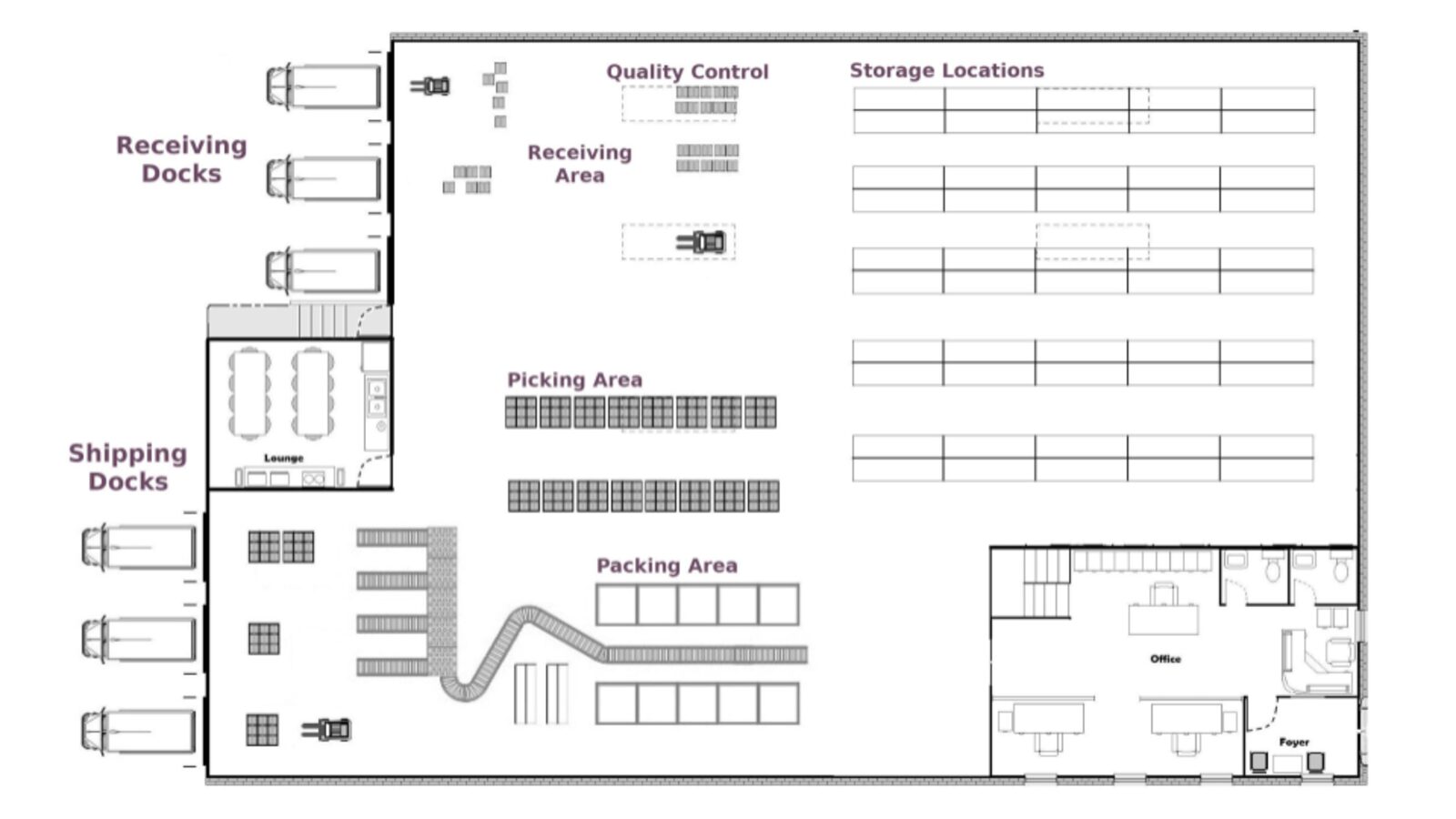
Odoo routes connect locations to define the flow. Image: Odoo Inventory documentation.
When a two-step transfer earns its keep
Add a two-step flow when a clear handoff improves accuracy, visibility, or accountability. For example, if a receiving clerk counts cartons at the dock and a put-away operator later places them in bins, separating receipt from storage can make each person’s responsibility visible.
But the extra step only helps if the team knows what to do next. If products sit in WH/Input after the receipt is validated, they have not vanished; they have not yet been transferred into WH/Stock. A stock report focused on the stock location may not show the full picture. Check the location and the linked internal transfer before assuming the receipt failed.
For practical guidance, Odoo explains the two-step receipt and delivery flow. The key question is simple: Does this step represent a real task or control your team needs? If not, it may be extra queue management with little payoff.
Resupply routes: follow the demand
A common multi-warehouse snag is expecting a transfer to appear without connecting the receiving warehouse to a source. In Odoo, set the supplying warehouse in the receiving warehouse’s Resupply From configuration. Then configure the product and replenishment method, such as a reordering rule or Replenish on Order (MTO), to use the appropriate supply route.
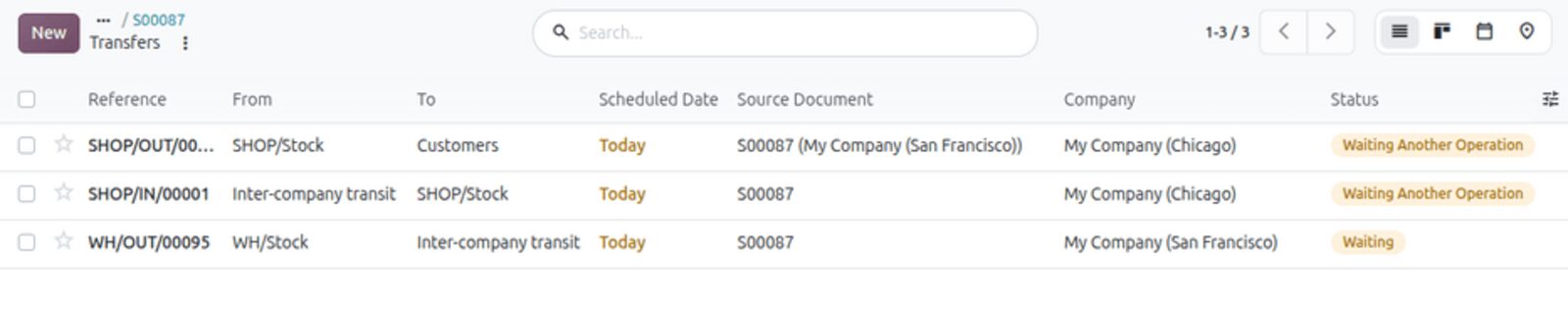
When replenishment triggers, Odoo can create outgoing moves from the supplying warehouse and a corresponding receipt for the receiving warehouse. The precise operations depend on the warehouses’ shipping and receipt flows. For an inter-warehouse route, a receipt can remain waiting until the supplying warehouse’s delivery is validated.
That “waiting” state is a clue to inspect the chain, not necessarily a sign that the software is stuck. Check the product, route, warehouse, and preceding transfer. Odoo’s inter-warehouse replenishment documentation walks through the configuration and resulting transfers.
Inter-warehouse replenishment can create linked outgoing and incoming transfers. Image: Odoo Inventory documentation.
“Waiting availability” is not the same as “waiting”
These labels point to different bottlenecks.
- Waiting another operation generally means an earlier move in a chain must be completed first. For example, a later step in a multi-stage flow cannot proceed until the preceding transfer is done.
- Waiting availability means the operation does not currently have the required stock reserved or available for that step. Depending on reservation settings and the flow, check availability or investigate incoming supply, demand, and location.
Start by reading the transfer’s source and destination, then follow its linked operations. Is the item still in input? Is a previous warehouse delivery unvalidated? Is there stock in the warehouse but not in the location this move draws from? The status is a useful signal; the move chain tells you what to fix.
The backorder trap: decide what happens to the remainder
When you validate less than the demanded quantity, Odoo may ask whether to create a backorder for the remainder. The operation type’s Create Backorder setting can be configured to ask, always create one, or never create one, in which case the remaining quantity is canceled. See Odoo’s operation type settings.
The operator’s decision should match what actually happened:
- If the missing quantity is still expected, keep it open as a backorder.
- If the remainder will not be received or shipped, cancel it intentionally.
- If the physical quantity differs from the screen, correct the quantity before validating.
A backorder is not extra stock. It is an open operation for the remaining demand. But if someone creates one by habit, or cancels a real remainder by mistake, the open work and expected stock can become confusing. Check the original transfer and its linked backorder before making a second move to “fix” a number.
Operation type, locations, and the accounting reality
Operation type choice matters because it sets up the transfer’s workflow and default locations, and can determine behavior such as backorder handling. But the operation type alone is not a switch for the general ledger. Odoo’s valuation depends on the movement’s locations and the inventory valuation configuration, among other settings.
A move between internal locations, such as input to stock, changes where goods are recorded, but does not by itself change the company’s total inventory value. Moves into or out of inventory can affect valuation. So if a transfer is assigned the wrong operation type or ends at the wrong location, the consequences may extend beyond a confusing label: the movement may not represent the real business event.
That is why operation type and location design deserve review before rollout. In Odoo’s valuation guide, the distinction between internal moves and moves into or out of inventory is explicit. Don’t assume that changing a transfer’s label fixes its accounting treatment.
A pre-close check that catches bad moves
Before month-end, review completed transfers for the period in Odoo’s Inventory reporting. Focus on the moves most likely to hide a process error:
- Confirm the source and destination match what physically happened.
- Check that internal transfers end in the intended internal or transit location, not an unintended customer, vendor, or adjustment location.
- Compare the done quantity with the receiving, picking, or shipping record.
- Follow partial operations through their backorders; make sure expected remaining quantities are still open.
- Review unusual negative stock, unexpected location balances, and valuation differences with your finance team.
For a fast operational spot check, filter completed moves for the period and inspect exceptions: unexpected destinations, partial quantities without a clear follow-up, and transfers that remain open even though the goods moved. Then compare the inventory valuation view with the accounting records using your company’s configured valuation method. The exact reconciliation depends on that setup, so involve your accounting lead rather than assuming every stock movement creates the same journal effect.
A small, regular exception review beats a large month-end investigation.
Frequently asked questions
When should we use a two-step receipt in Odoo?
Use it when receiving and putting goods away are distinct tasks, such as when one person verifies a delivery and another stores it. Make sure the team completes the internal transfer from input to stock.
Why is an Odoo transfer waiting for availability?
The required stock may not be reserved or available at the move’s source location. Check the location, reservation, replenishment, and any preceding operation before changing quantities.
Does a backorder add stock to inventory?
No. It keeps the remaining quantity as an open transfer to process. The completed quantity is moved; the backorder tracks what remains to be received or shipped.
Do internal transfers change inventory valuation?
Moving goods between internal locations generally changes their recorded location, not the company’s total inventory value. Valuation effects depend on whether goods move into or out of inventory and on the configured valuation setup.
Want to review your warehouse flow with us? Set up a working conversation with David through QuaintBusiness.com. Learn more at QuaintBusiness.com!
And if your team likes its business tools with a little more bite, explore the work and merch at DeadBrands.co.
The best transfer process is the one your team can explain, complete, and trust.